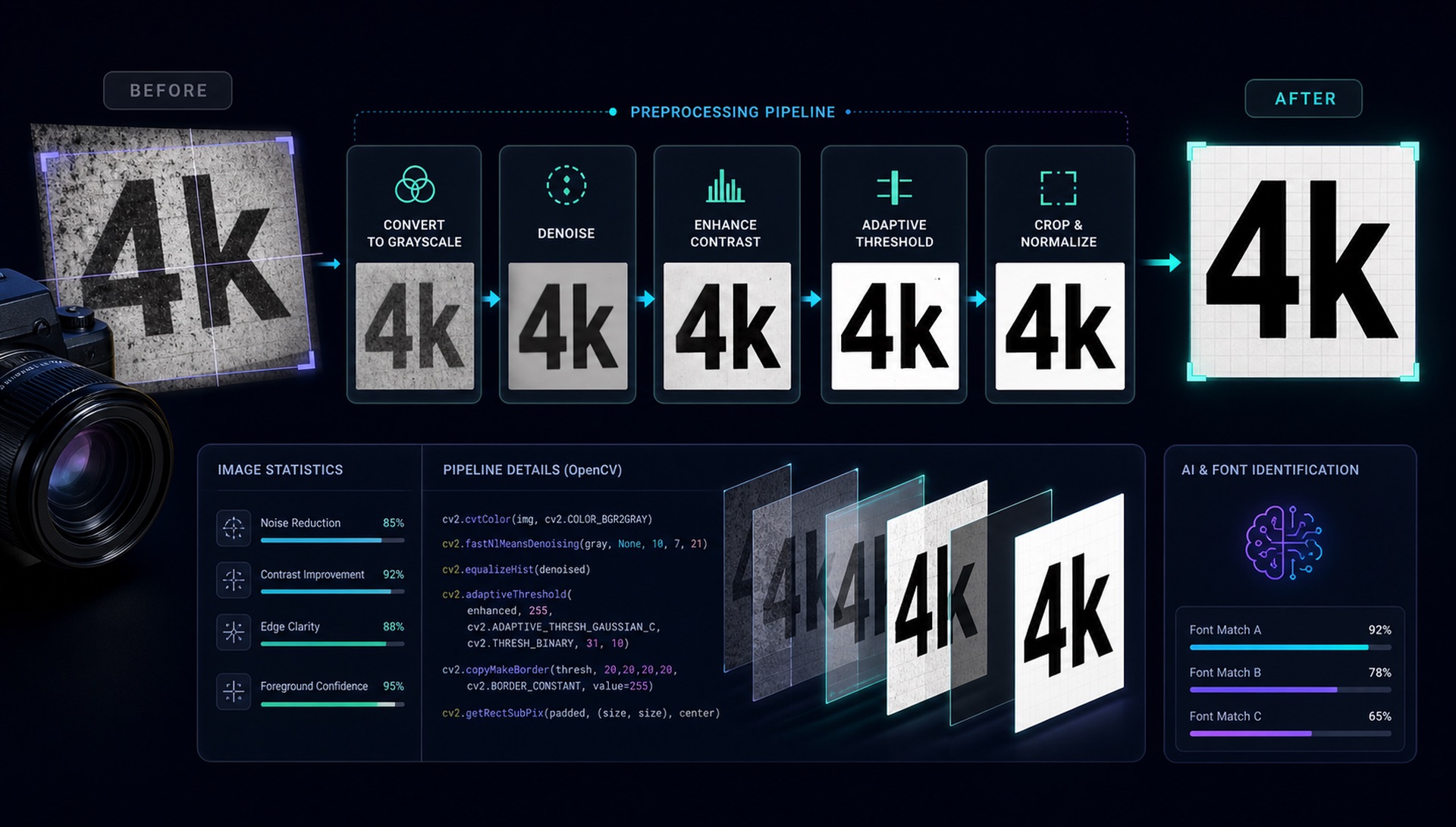
When you upload an image to FontFinder, the raw pixels never go directly to our AI model. First, they pass through a preprocessing pipeline built on OpenCV that strips away noise, corrects distortions, and leaves only clean letterforms for the neural network to analyse.
This preprocessing step is the difference between 60% accuracy and 92% accuracy. Here's exactly what happens — in order.
Step 1: Resolution Capping
Huge images slow everything down without adding information useful for font detection. We cap incoming images at 2048px on the longest side, preserving aspect ratio. For font identification, pixel-level detail at this resolution is more than sufficient — and it keeps inference times under 500ms even on CPU hardware.
Step 2: Grayscale Conversion
Fonts are defined by shape, not colour. Converting to grayscale immediately reduces the data we need to process by two-thirds (from three channels to one) while retaining all the edge and contrast information that matters for letterform recognition.
We handle RGBA (PNG with transparency) by compositing the alpha channel onto white before conversion — this prevents transparent logos from becoming black blobs.
Step 3: Denoising
Real-world images have grain, JPEG compression artifacts, and sensor noise. We apply a two-pass approach: a Gaussian blur to reduce high-frequency noise, followed by OpenCV's fastNlMeansDenoising for patch-based denoising that preserves edges better than any linear filter.
Step 4: Binarisation — The Critical Step
To run font matching, we need black text on a white background. We use Otsu's thresholding algorithm to find the optimal global threshold value automatically. But Otsu's alone fails on images with uneven lighting (like photos taken of physical media). For these, we fall back to adaptive thresholding with a 15×15 local window.
We run both algorithms, measure the result using an edge density score, and keep whichever produced cleaner, more distinct letterforms.
Step 5: Auto-Invert
After binarisation, text might be white-on-black or black-on-white. We count the ratio of dark to light pixels. If the image has more dark pixels than light, we invert it — ensuring text is always dark on a light background before it reaches the model.
Step 6: Deskewing
Even a 3° rotation can throw off font matching significantly. We use the Hough Line Transform to detect dominant line angles in the image, then rotate to correct. For images where Hough lines are ambiguous, we fall back to PCA (Principal Component Analysis) of the foreground pixels to determine the primary axis of orientation.
Step 7: Text Region Cropping
Finally, we use morphological dilation to connect nearby character components into text blobs, find contours, and crop to the tightest bounding box that contains the text. This removes background decorations, logos, and UI chrome that would confuse the AI.
Why This Matters
Our MobileNetV2 model was trained on clean, rendered font samples — not real-world photos. The preprocessing pipeline bridges that gap. By the time an image reaches the neural network, it looks as close to a clean font sample as mathematically possible — regardless of whether the original was a blurry phone photo, a scanned magazine page, or a screenshot.
This is called the domain gap, and it is the central problem in applied computer vision. A model only ever learns the distribution it was shown. Ours was shown crisp black glyphs rendered on white at a consistent size. Every property of a real photograph — colour cast, sensor noise, perspective, uneven lighting, JPEG ringing — is a dimension the model has no training signal for. Preprocessing does not make the model smarter. It moves the input back into the distribution the model already understands.
Where the Pipeline Still Struggles
Being specific about failure cases is more useful than claiming the pipeline is universal. Four situations reliably degrade results:
- Text over photographic backgrounds. A caption sitting on a busy image has no single threshold that separates glyph from background. Adaptive thresholding helps, but a crop that includes more background than letter will still produce noise.
- Heavy perspective distortion. Deskewing corrects in-plane rotation only. A sign photographed at a sharp angle is a projective transform, not a rotation, and the letterforms are genuinely a different shape by the time they reach the model.
- Very few characters. Three letters carry far less signal than fifteen. Single-letter crops are close to unusable, because most of what distinguishes a typeface lives in the relationships between glyphs.
- Outlined, stretched, or hand-modified lettering. Many logos are not set in a font at all. If a designer redrew the terminals, no font in any index will match exactly — the honest answer is the nearest relative, not the source.
What You Can Do at Capture Time
Preprocessing recovers a great deal, but it cannot add information the image never contained. The upload itself is where you have the most leverage:
- Screenshot rather than photograph whenever the text lives on a screen. This skips lens blur, noise, and lighting entirely.
- Zoom in before capturing. Resolution spent on the letters is worth more than resolution spent on the page around them.
- Crop to a single font style. A headline and its subtitle are usually two different typefaces, and mixing them in one crop produces a blend of both.
- Prefer PNG over JPEG for screenshots. JPEG compression puts ringing artifacts exactly along the high-contrast edges that define a letterform.
- Include a full word or two if you can. More glyphs mean more distinguishing features.
Why We Run Classical CV At All
A reasonable question in 2026 is why any of this is hand-written rather than learned. The answer is cost and predictability. Otsu's method, the Hough transform, and morphological dilation are deterministic, run in milliseconds on a CPU, and fail in ways we can inspect and reason about. An end-to-end learned preprocessor would need a large labelled dataset of real-world uploads, would cost meaningfully more per request, and would be far harder to debug when a single user reports a bad match. For a tool that has to stay free and fast, well-understood classical operations remain the better engineering trade.