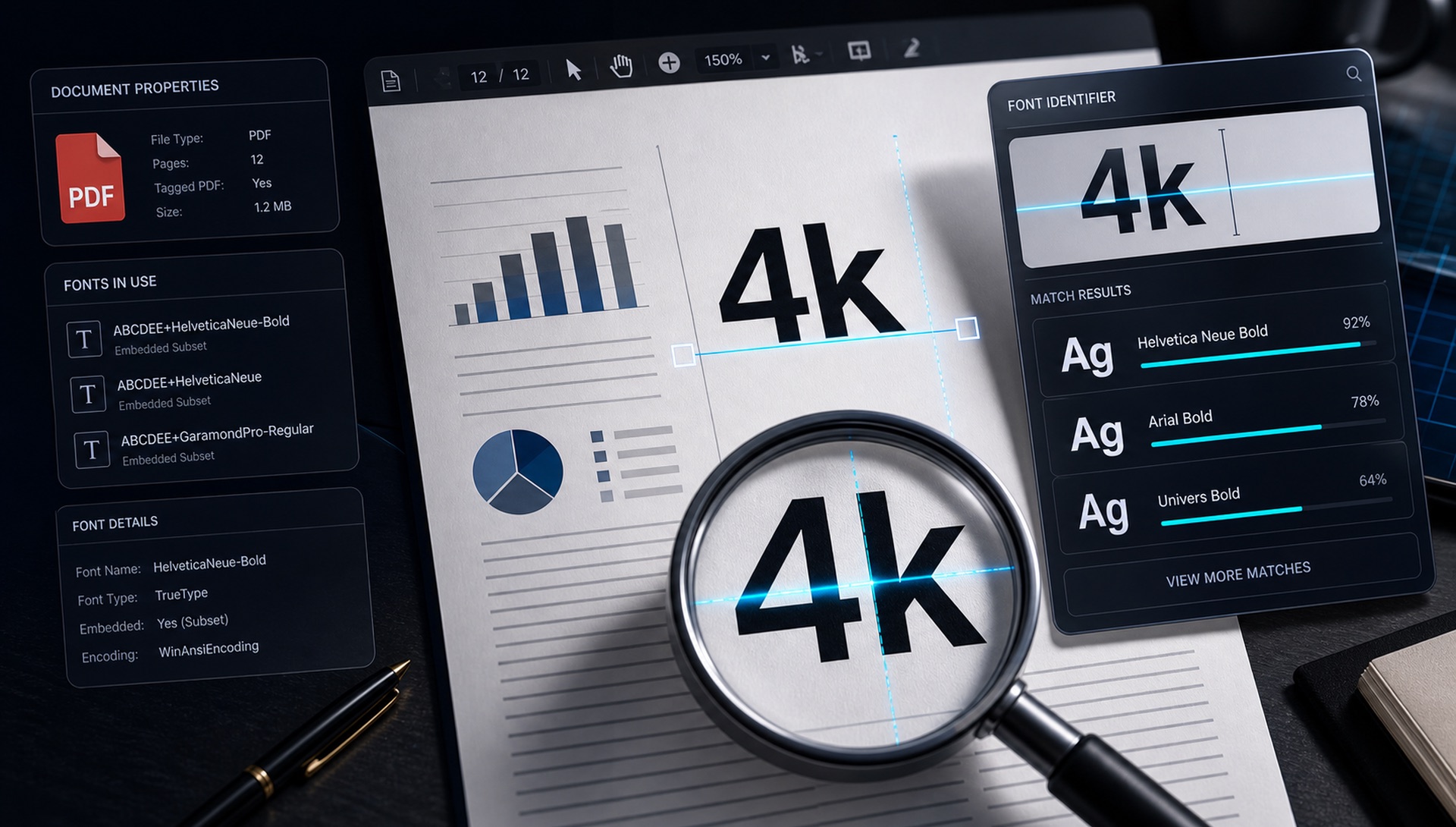
PDFs are one of the best places to find unknown fonts because they often preserve either the font metadata or a very clean rendering of the text. A brochure, invoice, media kit, brand guideline, ebook, resume, or label proof may contain the exact typography you need to identify. The trick is knowing whether the PDF still contains real text or whether the letters have been converted into shapes or pixels.
This guide walks through the safest workflow: check embedded fonts first, use image recognition when metadata is unavailable, and verify the final result by comparing the actual letterforms.
Check metadata
Look for embedded font names in the PDF properties or document inspector.
Zoom in
If metadata is missing, enlarge the text before taking a screenshot.
Crop cleanly
Capture one font style at a time: headline, body, caption, or logo.
Verify
Compare the result and confirm the license before using it.
Method 1: Check Embedded Fonts
Start by opening the document properties in your PDF viewer and looking for a Fonts section. Many PDFs list embedded typefaces because the file needs them to render the document correctly. You may see family names, style names, and subset prefixes. A subset prefix is a short group of letters before the font name, often added when only some characters are embedded. Ignore the prefix and focus on the readable family name.
This method is ideal because it can reveal the exact font without guessing. However, it only works when the PDF contains live text and preserves the font information. If a designer outlined the type before exporting, the PDF may contain vector shapes instead of text. If the document is a scan, the page may be a flat image with no font metadata at all.
Method 2: Select and Copy the Text
Try selecting a word with your cursor. If you can highlight and copy it, the PDF probably contains real text. That increases the chance that font metadata is available. If the selected text copies as normal words, inspect the font list. If it copies strangely, or if only the whole page selects as an image, you are likely dealing with outlined or scanned content.
Even when text is selectable, the font name may not be easy to interpret. Some exported files use internal names, subset names, or custom brand font names. In that case, use the metadata as a clue and still compare the rendered letters visually.
Method 3: Take a High-Resolution Screenshot
If embedded fonts are not available, turn the PDF into a clean image sample. Zoom in to 200 or 300 percent so the letters are large and crisp. Take a screenshot of the target text, then upload that screenshot to FontFinder. This is often more accurate than photographing a printed page because the PDF rendering is flat, evenly lit, and free from camera blur.
Crop carefully. A PDF page often contains multiple typographic roles: title, subtitle, body copy, captions, page numbers, buttons, and footnotes. Crop one role at a time. The heading font may be a bold display face while the body copy may be a neutral serif or sans-serif. Mixing them produces weaker matches.
What to Do With Outlined Text
Outlined text has been converted from editable type into vector shapes. The PDF no longer knows the font name, but the visual forms remain. Treat outlined type like a logo: capture it clearly, crop tightly, and use image-based detection. The match can still be very good because the outlines preserve the real letter shapes, but you lose the metadata shortcut.
Outlined text is common in print production because it prevents missing font issues at the printer. It is also common in logos, packaging, and exported artwork. If you receive a final print PDF, do not be surprised if the fonts are no longer listed.
How to Compare PDF Font Results
After running the screenshot through FontFinder, compare the candidates against the PDF sample. Match the weight first. A semibold can look wrong if you compare it to a regular weight, even within the correct family. Match the width next. Condensed and extended styles change the rhythm dramatically. Then inspect signature letters such as a, g, e, R, Q, and S.
For body copy, pay attention to x-height, punctuation, numerals, and spacing. PDFs often include tables, prices, SKUs, or measurements, so numeral style can matter. Some fonts use lining numerals, some use old-style numerals, and some include tabular figures. If you are rebuilding a document, these details affect whether the result feels authentic.
Special Cases: Scanned PDFs
A scanned PDF is really a collection of page images. The text may look like text to your eyes, but the computer sees pixels. OCR can extract words, but it usually cannot identify the original typeface reliably. For scanned documents, use the cleanest page, zoom in, screenshot a sharp area, and crop around a full line of text. If the scan is noisy, try a section with high contrast and minimal paper texture.
If the document is old or uses letterpress, typewriter, or degraded printing, expect similar-font results rather than exact matches. Historical and damaged samples often involve physical distortion that no digital font can match perfectly.
Save Your Evidence Before Rebuilding
If you are recreating a PDF design for a client, keep a small record of the evidence you used: the embedded font list, the screenshot crop, the FontFinder result, and the final font license link. This is helpful when a teammate, printer, or client asks why a specific typeface was chosen. It also prevents the same font research from being repeated later in the project.
Quick action: Upload a clean screenshot or photo to FontFinder, crop around one font style, and compare the ranked matches with your real text before you choose a license.
Where to Find the Fonts Panel in Each Reader
The embedded font list is the most reliable answer available, and every major reader exposes it somewhere. In Adobe Acrobat or Reader, go to File then Properties and open the Fonts tab, which lists every font with its type and encoding. In Preview on macOS, use Tools, then Show Inspector, and open the "i" tab. Chrome and Edge have no built-in font list, so use one of the others.
If you are comfortable on the command line and have Poppler installed, pdffonts document.pdf prints the complete table in a single command. It is by a wide margin the fastest method, and it works on files that other readers open slowly.
Decoding What the Font List Tells You
The names in that panel are rarely plain, and a few conventions are worth knowing. A six-letter prefix followed by a plus sign — for example ABCDEF+Helvetica-Bold — means the font is subsetted, with only the glyphs actually used embedded in the file. The prefix is a random tag, so ignore it; the real name is everything after the plus.
Labels such as "Type 1", "TrueType" and "Type 0" describe the font technology, not the design, with Type 0 usually indicating a composite font used for large character sets. The distinction that really matters is "Embedded" or "Embedded Subset" versus neither: a font listed as not embedded is being substituted by your reader, which means what you see on screen is not the typeface the author intended. In that case, identifying what you see tells you nothing useful about the original design.
Getting the Cleanest Possible Screenshot
When the font list is unavailable, screenshot quality decides everything. Zoom to 400 percent or more before capturing — PDF is vector, so zooming produces genuinely more detail rather than upscaled pixels, and this is the single biggest lever you have. Capture a region rather than the whole window, using Cmd+Shift+4 on macOS or Win+Shift+S on Windows, and always save as PNG because JPEG compression puts artefacts exactly where the letterform edges are.
Prefer a heading over body text, since larger glyphs carry more identifying detail, and avoid any text sitting over background images or watermarks, which defeat the thresholding step. A better route when it is available: export the page to PNG at 600 DPI from Acrobat, or run pdftoppm -r 600 -png document.pdf out, which gives you the maximum detail the file actually contains.
Extracting Embedded Fonts, and Whether You May
It is technically possible to extract embedded font files from a PDF with tools such as mutool extract. Two caveats matter. Embedded fonts are usually subsets containing only the characters the document uses, so they are unusable as general-purpose fonts. And extracting a font for reuse violates the licence of essentially every commercial typeface — embedding permission covers that document, not redistribution.
Use extraction to read the name if you must, then license the font properly from its foundry.
PDF Font Checklist
Check the PDF font list first. If the font is embedded, record the family and style names. If it is outlined or scanned, zoom in and take a clean screenshot. Crop one style at a time, run the image through FontFinder, compare the matches, and confirm the license. This workflow covers modern PDFs, print-ready files, scanned documents, and flattened brand artwork.
Frequently Asked Questions
Why does the font list show names I do not recognise? Strip the six-character prefix before the plus sign — it is a subset tag added at export, not part of the font name.
The PDF lists a font but the text looks different. Why? The font is probably not embedded, so your reader is substituting a lookalike from your system.
Can I identify fonts in a password-protected PDF? If you can open and view it, you can screenshot it. Permission restrictions may block the properties panel, but never the screen.