Typography is deceptively difficult. Even experienced designers — people who work with type daily — fall into consistent patterns that weaken their work. Here are the 14 most common mistakes, and exactly how to fix each one.
1. Wrong Line Height
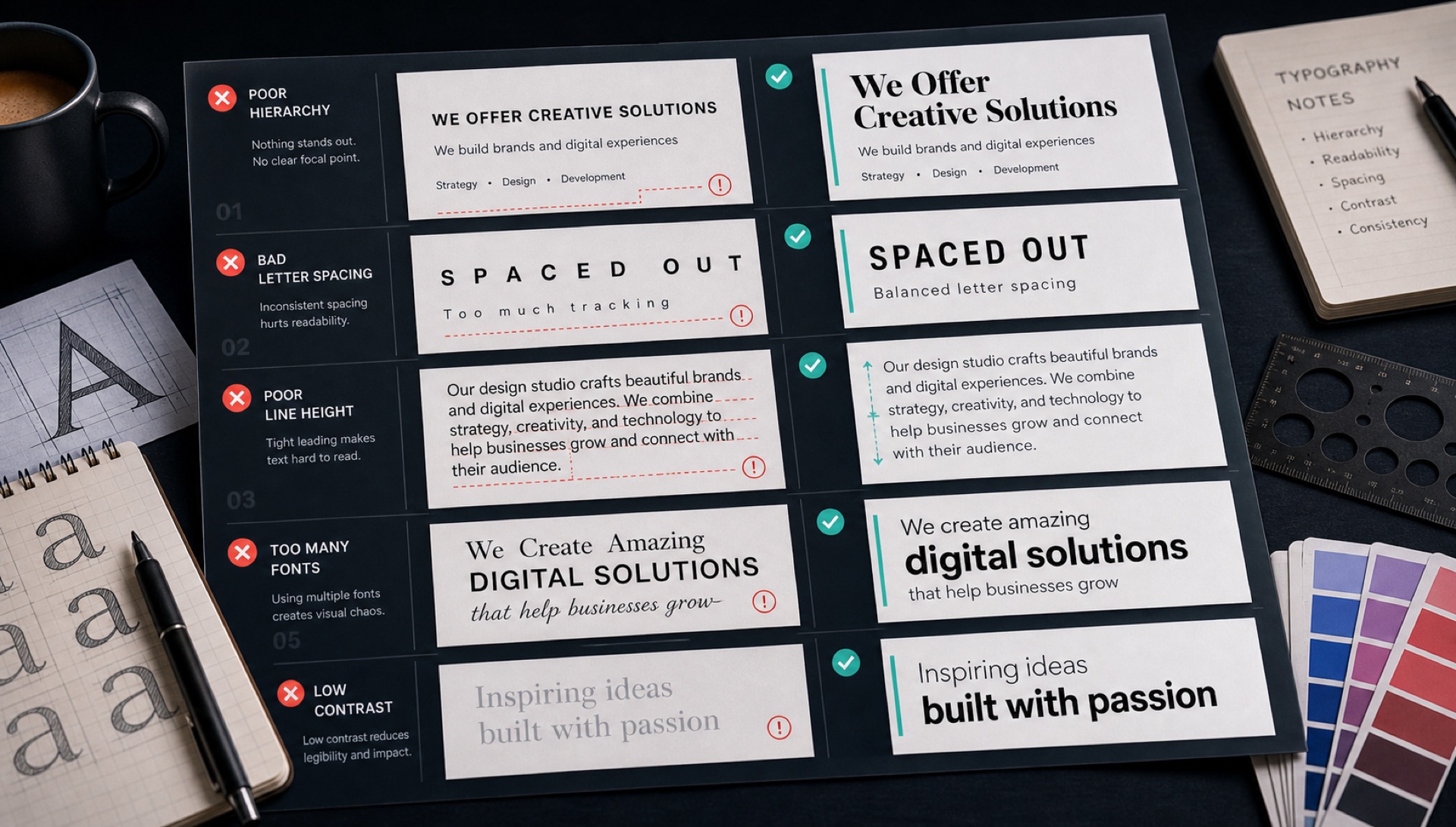
Line height (leading) is the space between lines of text. Most beginners set it to 1.0 (no extra space) or the browser default (1.2). For comfortable reading, body text needs 1.5–1.7. Display text needs 1.1–1.2.
Fix: Set line-height: 1.6 for body text as your default. Tighten to 1.1 for headlines above 48px. Loosen to 1.7 for small text under 14px.
2. Too Many Fonts
Three fonts are almost always one too many. Four fonts is a design emergency. More fonts = more visual noise = less clarity.
Fix: Use one font family with multiple weights to create hierarchy. If you must use two families, make them obviously different — serif + sans, not two sans-serifs.
3. Ignoring Optical Alignment
Mathematically centred text often looks off-centre because our eyes perceive different characters differently. A capital 'O' aligned to a baseline looks lower than a capital 'H' aligned to the same baseline.
Fix: Trust your eyes over the measurements. Nudge elements visually until they feel right, especially for logos and display type.
4. Bad Kerning on Headlines
Kerning is the spacing between individual letter pairs. Display text (large headlines) needs manual kerning because the automatic kerning tables built into fonts are optimised for body sizes.
Fix: For any text over 48px, zoom in and manually adjust spacing between pairs that feel too tight or too loose. "AV", "To", "We" are classic problem pairs.
5. Using a Screen Font for Print
Fonts designed for screen rendering (like Inter) look flat and lifeless when printed. They lack the optical compensation that print fonts have for ink spread.
Fix: Use print-optimised fonts for anything going to paper: Garamond, Caslon, Freight Text, or similar.
6. Widows and Orphans
A widow is a single word left on the last line of a paragraph. An orphan is the last line of a paragraph left alone at the top of a column or page. Both look unpolished.
Fix: Rewrite the text, adjust the container width, or add widows: 2; orphans: 2 in CSS to prevent single-line remnants.
7. All Caps Without Tracking
All-caps text is difficult to read without extra letter-spacing. The letters are designed for mixed-case context; in all-caps, they sit too close together.
Fix: Add letter-spacing: 0.05em to 0.12em for any all-caps text. The wider the font and the longer the word, the more spacing you need.
8. Line Length Nobody Measured
Line height gets all the attention, but line length ruins more layouts. A paragraph stretched across a 1400px container forces the reader's eye to travel so far that it loses its place returning to the next line. Too narrow, and the constant line breaks destroy reading rhythm.
Fix: Target 45–75 characters per line, with 65 as the sweet spot. In CSS this is one property: max-width: 65ch. The ch unit is literally the width of the '0' character in your current font, so it adapts automatically when the font changes.
9. Faux Bold and Faux Italic
If you write font-weight: 700 but only loaded the 400 weight, the browser does not fail — it synthesises a bold by algorithmically thickening the strokes. The same happens with italics, where it simply slants the upright letterforms. Both look subtly wrong: stroke joins clot, counters fill in, and a true italic's redrawn letterforms (particularly the 'a' and 'g') are missing entirely.
Fix: Load every weight and style you reference, or restrict your CSS to the weights you actually loaded. To catch it, compare your rendered bold against the foundry's specimen — synthesised bold is noticeably muddier.
10. The Wrong Kind of Quotes and Dashes
Straight quotes (") are typewriter artefacts. Typographic work uses curly quotes (" and "), and there is a real difference between a hyphen (-), an en dash (–) for ranges, and an em dash (—) for parenthetical breaks. Apostrophes should be ' rather than '.
Fix: Enable smart quotes in your CMS or editor. In CSS, hanging-punctuation: first pulls opening quotes into the margin so the text edge stays optically flush. Also watch for the prime symbols in measurements — 5′10″ uses primes, not quotes.
11. Text on Images Without a Contrast Floor
White text over a photograph looks stunning in the mockup, where the designer chose a photo with a convenient dark region. It fails in production when a user uploads a bright image and the headline becomes invisible.
Fix: Never rely on the image. Apply a scrim — a semi-transparent gradient overlay — or a subtle text shadow so the contrast ratio holds regardless of what is underneath. Verify against WCAG AA: 4.5:1 for body text, 3:1 for text above 24px.
12. Ignoring Numerals
Most designers never look at the digits until a pricing table goes live. Two settings matter: lining vs oldstyle figures (oldstyle digits have ascenders and descenders and look wrong in tables), and tabular vs proportional figures (proportional digits have varying widths, so numbers in a column will not align).
Fix: Use font-variant-numeric: tabular-nums lining-nums for any table, price, timer, or data display. Leave proportional oldstyle figures for running prose, where they read better.
13. Letter-Spacing Applied Uniformly
A single global letter-spacing value across a design system is a mistake, because the correct value changes with size. Large text needs tighter spacing than the font's default; small text needs looser.
Fix: Scale it. Roughly: -0.02em for display sizes above 48px, 0 for body text, +0.01em for captions under 13px. Most typefaces are spaced for text sizes, so headlines almost always need tightening.
14. Justified Text Without Hyphenation
Justified text on the web without hyphenation produces "rivers" — ragged white channels running down the paragraph where the browser has stretched word spacing to force each line to full width. It is the fastest way to make a layout look amateurish.
Fix: Either use text-align: left (perfectly professional, and the web default for good reason), or pair text-align: justify with hyphens: auto and a lang attribute on the html element so the browser knows which hyphenation dictionary to use.
A Quick Self-Audit
Run this over any layout before you ship it:
- Is body text at least 16px with line-height 1.5 or more?
- Is every paragraph capped at roughly 65 characters?
- Have you loaded every weight and style your CSS references?
- Do headlines above 48px have negative letter-spacing?
- Are quotes curly and dashes correct?
- Do numbers in tables use tabular figures?
- Does every text-over-image case hold 4.5:1 contrast at worst case?
- Does the whole design use two font families at most?
Eight checks, a couple of minutes, and it catches the overwhelming majority of typographic problems that reach production.