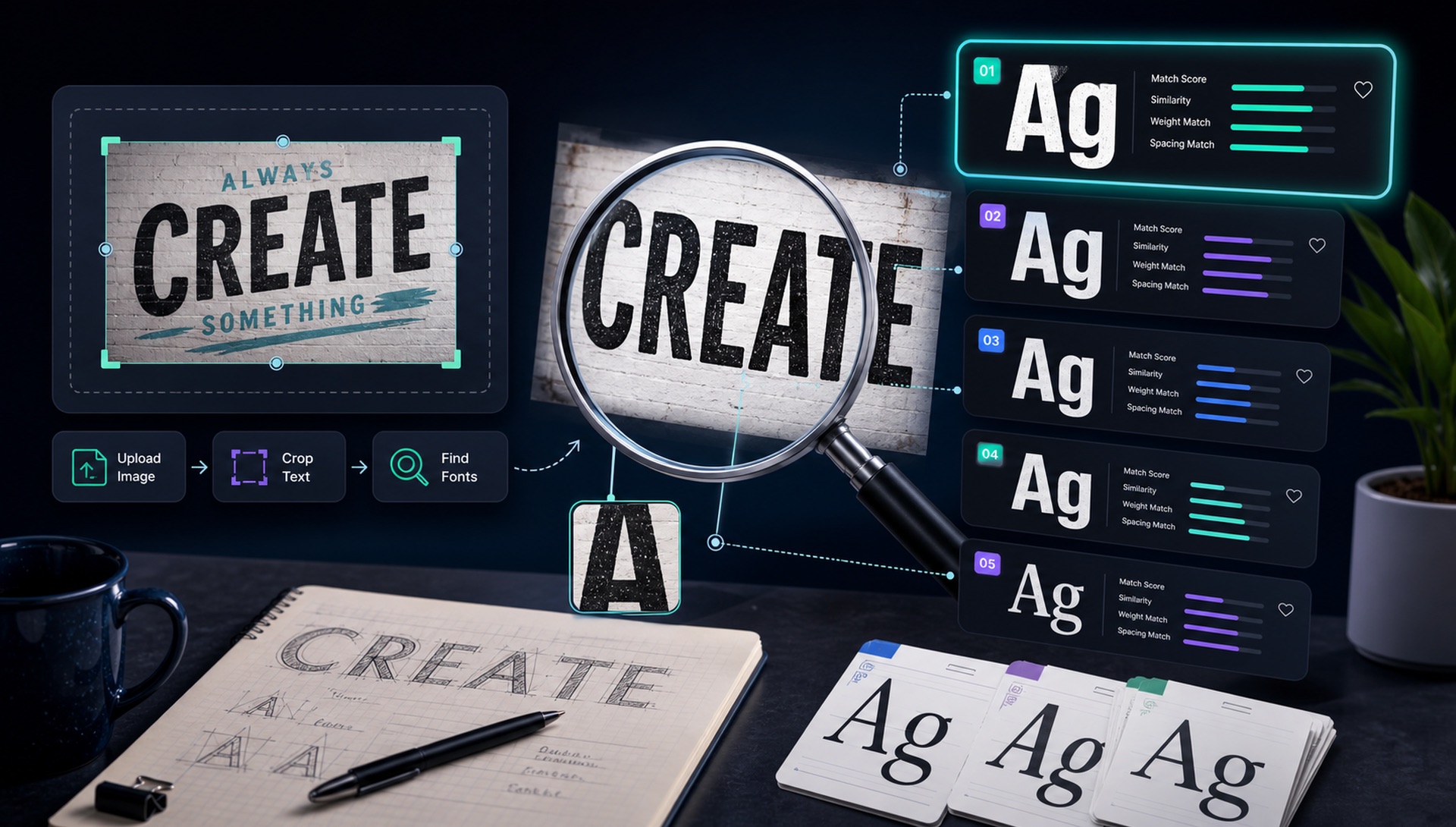
A font finder from image is useful because most real design inspiration does not arrive as selectable text. You see a wordmark on a product box, a headline in an ad, a caption inside a social post, or a button style in a screenshot, and the font name is nowhere to be found. Instead of searching font libraries by memory, you can upload the image, crop the exact text, and let the tool compare the visible letter shapes against known typefaces.
The important detail is that font identification is not magic. A good result depends on the quality of the image, the crop, the amount of text, and how much the original designer changed the letters. This guide gives you a practical workflow for getting better matches from FontFinder and for judging the results like a designer, not just accepting the first name on the screen.
Capture
Use the clearest source file, screenshot, or photo you can get.
Crop
Select only the text you want identified, with one font style at a time.
Compare
Check the top matches against signature letters and spacing.
Confirm
Preview your own words and verify licensing before using the font.
Quick Start: Identify a Font From an Image in 4 Steps
If you just want the answer fast, here is the whole process:
- Take a screenshot of the text you want to identify (Cmd+Shift+4 on Mac, Win+Shift+S on Windows), or save the image file.
- Go to the FontFinder homepage and upload the image — or simply drag and drop it anywhere on the page.
- When the crop tool opens, draw a tight selection around the text only.
- Click Identify Font and review the ranked matches in a few seconds.
Pro tip: crop as close to the letters as possible. Include only the text — not surrounding UI elements, icons, or decorations. The rest of this guide explains how to get the most accurate match possible from any kind of image.
Why Image Quality Changes the Result
Font recognition works by reading the shapes of letters. If those shapes are blurred, compressed, tilted, shadowed, or partly hidden, the tool has less real information to compare. A small JPEG pulled from a messaging app often loses the crisp corners and curves that distinguish one typeface from another. A screenshot taken at 200 percent zoom, on the other hand, gives the recognition engine larger strokes, clearer counters, and cleaner terminals.
Start with the highest-resolution source available. If the font appears on a website, zoom in before taking the screenshot. If it appears in a PDF, increase the zoom level and capture the text as sharply as possible. If it appears on packaging or signage, photograph it straight-on in even light. Strong contrast helps too: dark letters on a light background or light letters on a dark background are both fine, but low-contrast textures make the job harder.
Crop One Font Style at a Time
The crop is the part users most often underestimate. A full poster may contain a headline font, a body font, a caption font, decorative icons, photography, borders, and texture. If all of that goes into one scan, the tool must guess which visual information matters. A tight crop tells FontFinder exactly which letterforms to study. For logos, crop only the wordmark and leave out the symbol. For screenshots, crop only the heading or button label you care about. For packaging, crop the product name separately from nutrition labels or small legal copy.
Do not mix uppercase display text and lowercase paragraph text in the same crop unless you know they use the same typeface. Designers often combine multiple fonts in one layout, and mixing them can produce a result that is close to neither. If you want to identify two fonts from one design, run two separate scans.
Use Enough Letters
One letter is rarely enough. Many fonts share similar versions of an uppercase I, a lowercase l, or a round O. A full word provides rhythm, spacing, width, and several distinctive shapes. The best letters for identification are usually a, g, e, R, Q, S, t, y, and ampersands because designers draw them in highly recognizable ways. A word such as "Branding" is more useful than a word such as "IIII" because it contains bowls, diagonals, terminals, and spacing variety.
If the image contains only a short logo, use what you have, but compare the results more carefully. Many brand logos are customized after the font is chosen. A designer may sharpen a corner, adjust the spacing, redraw a letter, or connect two strokes. In those cases, a font finder may return the source typeface, or it may return a close neighbor that shares the same structure.
How to Judge the Matches
After the scan, compare the top results visually. Look first at the broad category: serif, sans-serif, script, display, monospace, or handwriting. Then compare proportions. Is the original condensed or wide? Is the x-height tall or modest? Are the counters open or tight? Next, check stroke contrast. A high-contrast serif with thin hairlines should not be replaced by a sturdy slab serif just because both have serifs.
Finally, study terminals, corners, and spacing. Terminals are the ends of strokes. They can be rounded, angled, cut flat, or flared. Corners can be sharp, softened, geometric, or organic. Spacing can feel compact and logo-like or open and editorial. These small details are often what separate a correct match from a merely similar one.
When the Exact Font Is Not Available
Sometimes the exact font cannot be found because the lettering is custom, the typeface is private, the sample is distorted, or the font is not in the available database. That does not make the search useless. A ranked list of similar fonts is still valuable because it gives you a shortlist with the right visual DNA. For moodboards, redesigns, mockups, and web projects, a similar font with a clean license can be more practical than an exact commercial font you cannot use.
For professional work, always check licensing. A font name tells you what to search for, but it does not automatically grant the right to use it in a logo, website, app, package, or advertising campaign. If the result points to a paid font, buy the correct license. If you prefer a free alternative, compare the closest open-source fonts and test them in the real layout.
Identifying Fonts From Photos (Signs, Packaging, Print)
Photos are harder than screenshots because cameras add perspective, blur, glare, shadows, and texture. Photograph the text like a scanner would see it: stand square to the sign, package, poster, or label, tap to focus on the letters, and take more than one shot. A slightly boring straight-on photo is far better for font recognition than a dramatic angled one.
Watch for the common photo problems. Glare can erase thin strokes. Shadows can make a clean font look rough. Curved packaging stretches letters near the edge. If the surface is glossy or metallic, change your angle until the letter edges are easier to see. Signs, logos, and packaging also frequently use customized lettering, so expect the top result to sometimes be the closest family rather than a perfect one-to-one match.
Understanding Confidence Scores
FontFinder ranks results by visual similarity. A match above 85 percent is usually the exact font. Matches between 70 and 85 percent are very close — often the same typeface family at a different weight or width. Below 70 percent, you are looking at visually similar alternatives rather than the original.
Once you have results, type your own text into the preview box and watch it render in each candidate font in real time. This side-by-side check is the fastest way to confirm a match visually, because a font can nail the sample word and still behave differently with other letters.
Common Mistakes to Avoid
Avoid uploading a full page when you only need a headline. Avoid scanning heavily angled photos when a straighter photo is possible. Avoid using screenshots where the text is smaller than a typical body paragraph. Avoid selecting text with glow effects, bevels, heavy shadows, or outlines unless that is the only version available. Effects can hide the real edges of letters and make a simple geometric font look like a decorative display font.
Also avoid treating confidence as the only decision. Font matching is visual. A lower-ranked match can sometimes be the better answer if the sample is short or customized. Use the score as a guide, then trust a side-by-side comparison of the letters.
Quick action: Upload a clean screenshot or photo to FontFinder, crop around one font style, and compare the ranked matches with your real text before you choose a license.
Final Checklist
Use the best image, crop tightly, scan one font style at a time, include multiple letters, compare the details, and verify the license. That workflow turns a font finder from image into a reliable research tool rather than a guessing machine. It is especially helpful for designers, developers, brand builders, Amazon listing creators, and anyone who needs to recreate or understand typography from visual references.
Related Guides
- How to find the font used in any logo — for wordmarks, low-resolution files, and stylized brand type.
- Find a font from a screenshot on your phone — a mobile-first workflow for iPhone and Android.
- Identify a font from a PDF — check embedded font metadata before falling back to screenshots.
- What font is this? 7 reliable identification methods — including browser inspection and manual letterform checks.
- How to find similar fonts — when the original is custom, private, or too expensive.