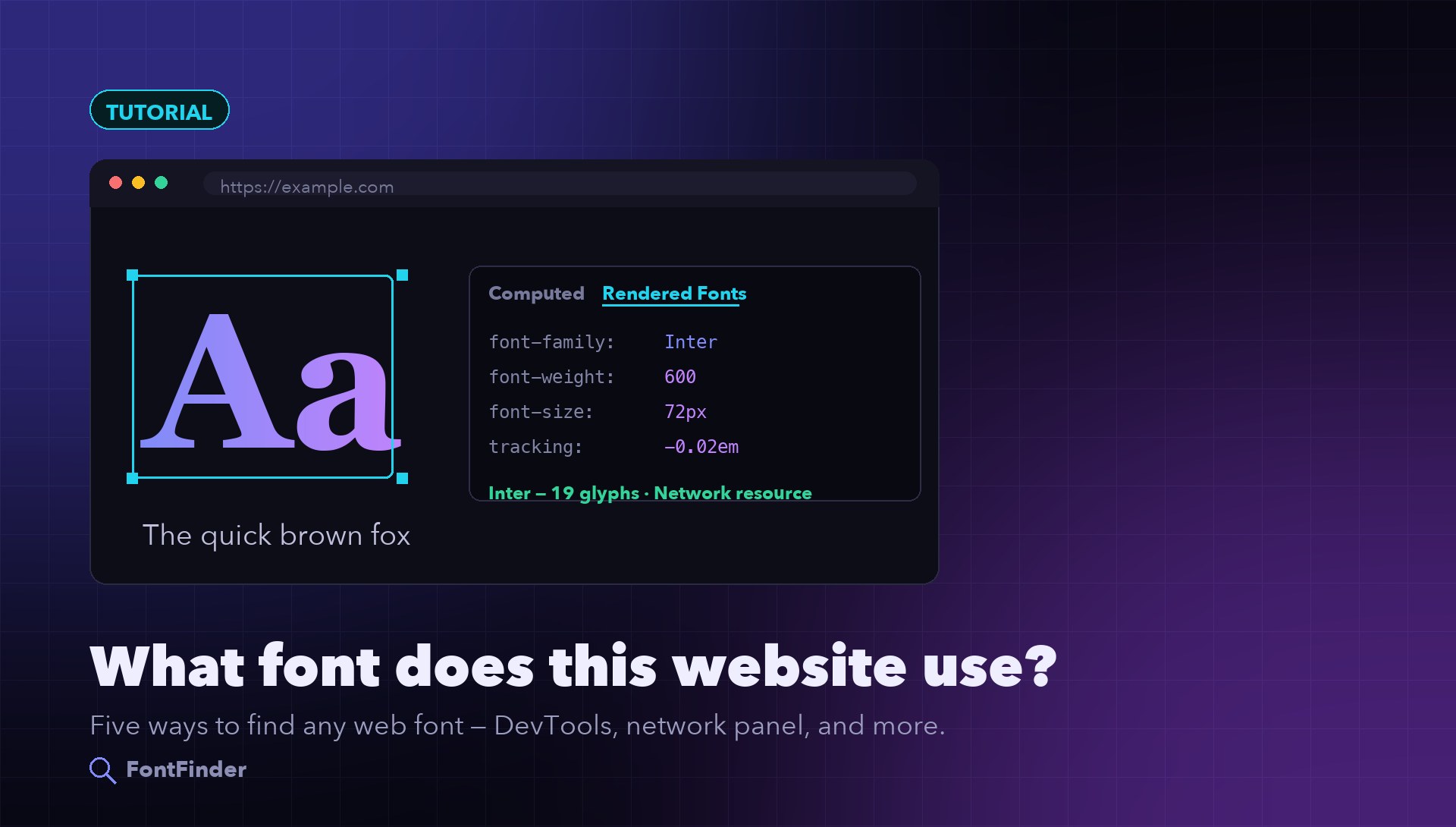
When the type you admire is on a live website, you are in the best possible position: the font name is almost certainly sitting in the page's own code, and you can read it directly. No guessing, no visual comparison, no ranked matches — just the exact family name the browser was told to render.
This guide covers five methods, ordered from most reliable to most forgiving. The first three give you a definitive answer in under a minute. The last two exist for the cases where the text is not really text at all.
DevTools
Selectable text on a live page — gives the exact rendered font.
Network panel
Reveals the real font files and the service delivering them.
Extension
One-click hover inspection when you check fonts often.
Image match
Logos, canvas, and text baked into images — upload and compare.
1. DevTools: The Rendered Fonts Panel
This is the method to reach for first, because it tells you which font the browser actually drew rather than which fonts the CSS asked for. Those are different things, and the difference matters.
Right-click the text and choose Inspect. In Chrome or Edge, select the element, open the Computed tab in the styles pane, and scroll to the very bottom. There you will find a Rendered Fonts section naming the family the browser used, the number of glyphs it rendered, and whether the font came from the network or the local machine. Firefox does the same thing more prominently: select the element and open the dedicated Fonts tab, which lists the rendered families along with their weight, style and variable-axis settings.
Why this beats reading the CSS: a rule like font-family: "Söhne", Helvetica, Arial, sans-serif lists four candidates. If Söhne failed to load, or if the character you selected is missing from it, the browser silently fell through to the next one. The Computed value shows you the whole stack; Rendered Fonts shows you the winner.
2. Read the CSS and the @font-face Rules
The Styles pane shows the font-family declaration that applied to the element, along with font-weight, font-size, letter-spacing and line-height — the full recipe, not just the name. If you are trying to reproduce a look rather than merely name it, copy all of those values, because tracking and weight do as much work as the typeface itself.
To find where the font is served from, search the page's stylesheets for @font-face. In DevTools, open the Sources panel and search across files, or simply view the page source and follow the stylesheet links. An @font-face block gives you the family name the site chose, the src URL of the actual file, the weight range if it is a variable font, and the font-display strategy.
Be aware that the family name in @font-face is arbitrary. A site can name a font anything it likes — plenty of sites ship a font declared as BrandSans that is a licensed commercial typeface underneath. When the name looks bespoke, move to the network panel.
3. The Network Panel: Follow the Font Files
This is the method that survives renaming. Open DevTools, go to the Network tab, filter by Font, and reload the page. You now have a list of every font file the page actually downloaded.
Three things are worth reading there:
- The filenames. Font files are often shipped with their real names intact, even when the CSS family name is generic. A file called
GT-Walsheim-Bold.woff2settles the question regardless of what the CSS calls it. - The domain. Files from
fonts.gstatic.comare Google Fonts and therefore free and openly licensed.use.typekit.netmeans Adobe Fonts.fast.fonts.netis Monotype. A self-hosted path usually means a purchased licence or an open font the team downloaded. - The count and size. A page pulling six static weights is a useful signal that no variable version was used, which matters if you are auditing performance rather than just naming the font.
If the site loads Google Fonts, there is an even faster shortcut: look at the stylesheet request itself. A URL like fonts.googleapis.com/css2?family=Inter:wght@400..700 names the family and the exact weight range in plain text.
4. Browser Extensions for Repeat Inspection
If you check fonts many times a day, an extension removes the friction. Tools such as WhatFont, Fontanello and Fonts Ninja let you hover or click any text and read the family, size, weight and line-height in a small popup, without opening DevTools at all.
They are convenient rather than authoritative. Most of them read the same computed values you could read yourself, and some report the first family in the CSS stack rather than the rendered one — which is exactly the case where DevTools is more trustworthy. Use an extension for speed, and confirm in the Rendered Fonts panel when the answer matters.
5. When the Text Is Not Text
Every method above depends on the text being real, selectable text in the DOM. Frequently it is not:
- Logos and wordmarks are almost always SVG or PNG, and often custom-drawn rather than set in any released font.
- Hero images and campaign banners bake the type into a JPG.
- Canvas and WebGL renders draw glyphs as pixels with no inspectable element.
- Screenshots inside a page — a product UI shown as an image — carry no font data at all.
You can tell in a second: try to select the text with your cursor. If it does not highlight, there is nothing for DevTools to read.
At that point, switch to visual matching. Take a screenshot of the text, crop tightly around a single line in one style, and upload it to FontFinder to compare the letterforms against known typefaces. You will get ranked candidates rather than a certainty, which is the honest answer for type that was never declared in CSS. Our guides to identifying fonts from logos and finding a font from an image cover how to get the best matches from that workflow.
Quick action: Upload a clean screenshot or photo to FontFinder, crop around one font style, and compare the ranked matches with your real text before you choose a license.
Reading the Answer Correctly
A few things that regularly trip people up once they have a name:
- System font stacks are not a font. If the computed value resolves to
-apple-system,BlinkMacSystemFontorsystem-ui, the site is deliberately using whatever the visitor's OS provides — San Francisco on Apple devices, Segoe UI on Windows, Roboto on Android. There is nothing to download. - The heading and the body are usually different families. Inspect each separately rather than assuming one answer covers the page.
- Weight and tracking carry the look. Two sites using Inter can look nothing alike. Copy the full computed values, not just the family name.
- Naming it does not license it. A font served from Typekit or a foundry CDN is licensed by that site, not by you.
That last point is worth taking seriously before you reuse anything you find. Our font licensing guide covers which licences permit commercial and web use, and what a desktop purchase does not include.
Summary
For selectable text, DevTools answers the question definitively: the Rendered Fonts section in Chrome or the Fonts tab in Firefox names the family the browser actually drew. The network panel confirms it by showing the real font files and the service delivering them. Extensions make the check faster if you do it often. And when the type is locked inside a logo or an image, screenshot it, crop tightly, and match it visually instead.
Related Guides
- What font is this? 7 ways to identify a font — the full set of identification methods, online and offline.
- How to find the font used in any logo — for wordmarks and custom lettering.
- How to use Google Fonts the right way — once you know the font, load it well.
- Font licensing explained — check what you are allowed to do before you ship it.